1. Introduction
Welcome to WINStream — a flexible, customizable RSS feed reader for Windows with a built-in stock widget. Whether you follow dozens of news sources or keep a close eye on the markets, WINStream brings everything together in one streamlined desktop experience.
1.1 What Is WINStream?
WINStream is a Windows desktop application that lets you subscribe to and read RSS and Atom feeds from any source — news sites, blogs, podcasts, and more. Alongside your feeds, a built-in stock widget displays live market quotes and portfolio data, so you never need to switch apps to stay informed.
1.2 Key Features
- Subscribe to unlimited RSS and Atom feeds
- Responsive multi-column display
- Flexible, customizable layout and themes
- Built-in live stock widget with watchlist support
- Background auto-refresh to keep content current
- Lightweight and optimized for Windows desktop and tablet
1.3 System Requirements
- Windows 10 (version 1903 or later) or Windows 11 Operating System
- x64 Architecture
- 2 GB minimum (4 GB recommended) RAM
- 100 MB available disk space Storage
- Active internet connection required for feed and stock data Network
2. Getting Started
2.1 Installing WINStream
- Open the Microsoft Store on your Windows device.
- Search for WINStream and click Get or Install.
- Once installed, launch WINStream from the Start menu or taskbar.
2.2 First Launch
WINStream comes pre-loaded with a variety of sample RSS feeds and stock quotes so you can explore the app straight away. These are provided as examples of what is possible — you can delete any or all of them and replace them with your own content.
3. Managing Feeds
3.1 Adding a Feed
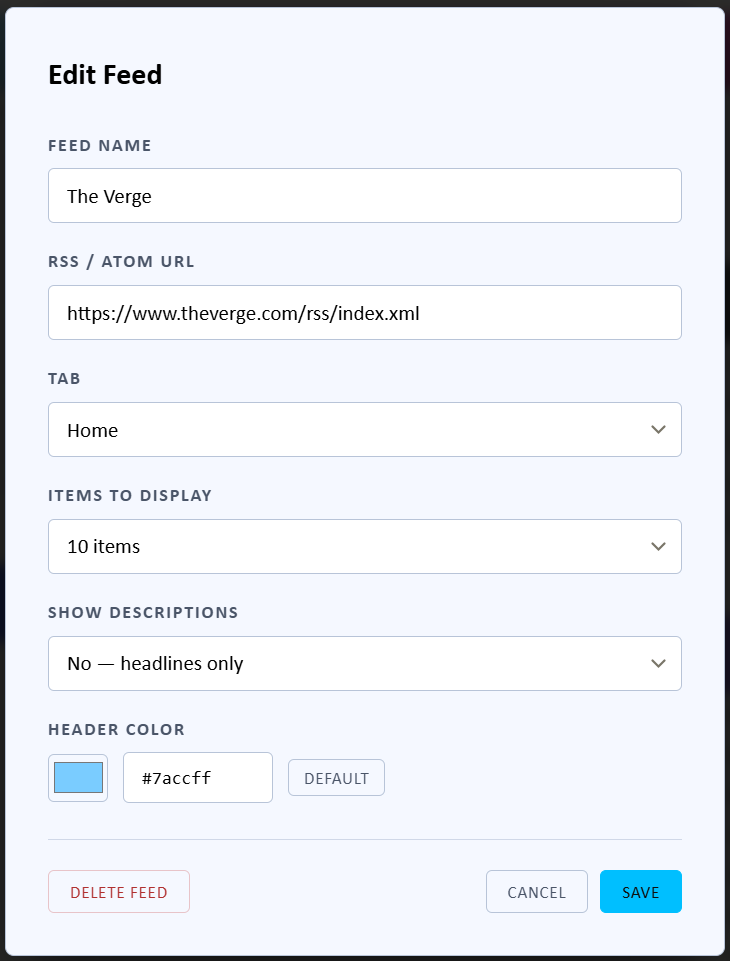
- Click the + Add Feed button in the top-right toolbar or located at the bottom of column.
- Enter the URL of the RSS or Atom feed in the dialog box.
- In the Edit Feed dialog, you can also configure: Header Color, Items to Display, Show Descriptions.
- Click Save to add it to your feed list.
3.2 Saving and Restoring Your Configuration
Saving a Configuration Backup

- Open Settings (gear icon).
- Under Configuration, click Download Config Backup.
- The configuration file is automatically saved to your Downloads folder.
Restoring or Importing a Configuration

- Open Settings (gear icon).
- Under Configuration, click Upload / Import Config.
- Select your previously saved configuration file.
3.3 Refreshing Feeds
WINStream automatically refreshes your feeds in the background. To manually trigger a refresh, click the Refresh button on the tool bar of a selected feed or "Refresh All" button in the top navigation bar.
3.4 Unsubscribing from a Feed
To remove a feed, click the trash can icon on the right side of the feed's header card. You will be prompted to confirm before the feed is permanently removed.
4. Stock Widget
WINStream includes a built-in stock widget that displays live market data alongside your news feeds. The widget is powered by the Finnhub financial data API and refreshes automatically.
4.1 Finnhub API Key (Required)
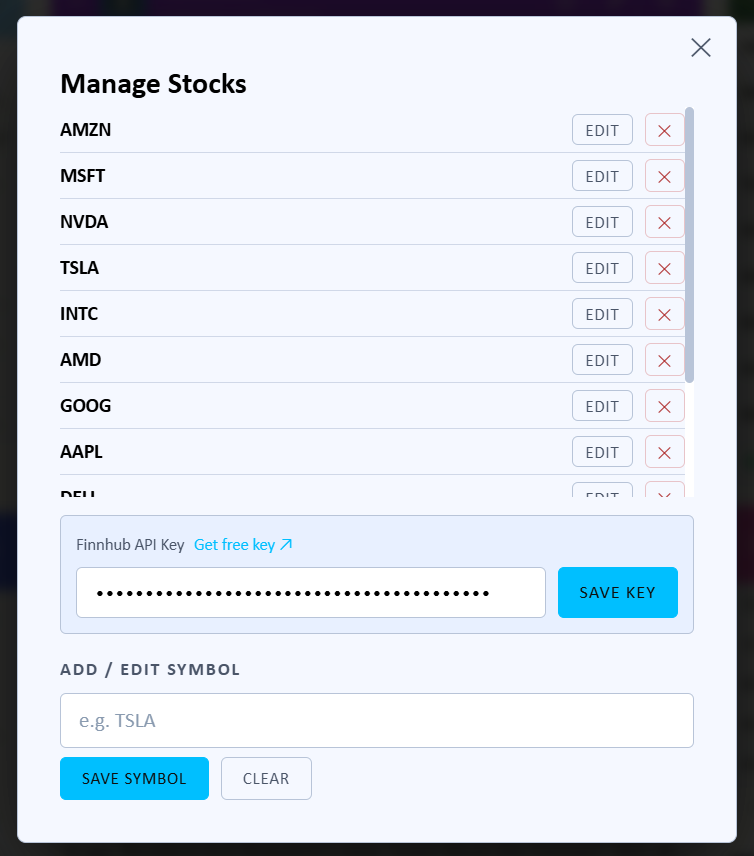
Getting Your Free API Key
- Visit finnhub.io/register and create a free account.
- Once registered, your API key will be displayed on your Finnhub dashboard.
- Copy the API key to your clipboard.
Entering Your API Key in WINStream
- Open WINStream and click pencil icon located on the stock widget.
- Paste your Finnhub API key into the API Key field.
- Click Save Key. The widget will connect and begin displaying live data.
5. Customization & Settings
5.1 Opening Settings

5.2 Configuration Backup
Under the Configuration section you can save or restore all your WINStream customizations.
5.4 Appearance — Color Settings

Click Color Settings under the Appearance section to customize the app's visual theme. You can adjust the following colors: Page Background, Card Background, Feed Header, Accent / Buttons, Text.
5.6 Font Size Adjustment
WINStream lets you adjust the reading font size at any time without opening Settings. The control lives in the top-right toolbar and is designed to stay out of the way until you need it.
How it works
- In the toolbar you will see a single button labelled A. This is the font-size control in its resting state.
- Hover your mouse over the A button and it expands in place to reveal two buttons: A− to decrease the font size and A+ to increase it. Move the mouse away and the control quietly collapses back to A.
- Each click adjusts the font size by one point. The current size briefly appears in blue to the left of the buttons, then fades away.
- Font size ranges from 11 pt (compact) to 22 pt (large). The buttons dim automatically when either limit is reached.
- The font size setting is remembered between sessions — you only need to set it once.
- Font scaling applies to all feed content and article text. The toolbar and header area remain at a fixed size so the app chrome is unaffected.
5.7 Ultrawide Display — Four-Column Layout
On ultrawide monitors WINStream automatically expands from three feed columns to four, giving you more content on screen without any manual configuration. A toggle button in the toolbar lets you turn the extra column on or off at any time.
What triggers the four-column layout
Two conditions must both be true at the same time for the fourth column to appear automatically:
- Window width of at least 1,800 pixels. A standard 1080p (1920×1080) monitor at full screen does not qualify on its own because the next condition must also be met.
- Aspect ratio wider than 16:9. This targets genuine ultrawide screens (21:9, 32:9 super-ultrawide) and wide application windows without triggering on a typical full-screen 1080p display.
Benefits of the fourth column include more feeds visible at a glance and better use of screen real estate. Your preference is saved and remembered between sessions.