1. Introduction
Welcome to WINStream — a flexible, customizable RSS feed reader for Windows with a built-in stock widget. Whether you follow dozens of news sources or keep a close eye on the markets, WINStream brings everything together in one streamlined desktop experience.
1.1 What Is WINStream?
WINStream is a Windows desktop application that lets you subscribe to and read RSS and Atom feeds from any source — news sites, blogs, podcasts, and more. Alongside your feeds, a built-in stock widget displays live market quotes and portfolio data, so you never need to switch apps to stay informed.
1.2 Key Features
- Subscribe to unlimited RSS and Atom feeds
- Responsive multi-column display
- Flexible, customizable layout and themes
- Built-in live stock widget with watchlist support
- Background auto-refresh to keep content current
- Lightweight and optimized for Windows desktop and tablet
1.3 System Requirements
- Windows 10 (version 1903 or later) or Windows 11 Operating System
- x64 Architecture
- 2 GB minimum (4 GB recommended) RAM
- 100 MB available disk space Storage
- Active internet connection required for feed and stock data Network
2. Getting Started
2.1 First Launch
WINStream comes pre-loaded with a variety of sample RSS feeds and stock quotes so you can explore the app straight away. These are provided as examples of what is possible - you can delete any or all of them and replace them with your own content.
3. Managing Feeds
3.1 Adding a Feed
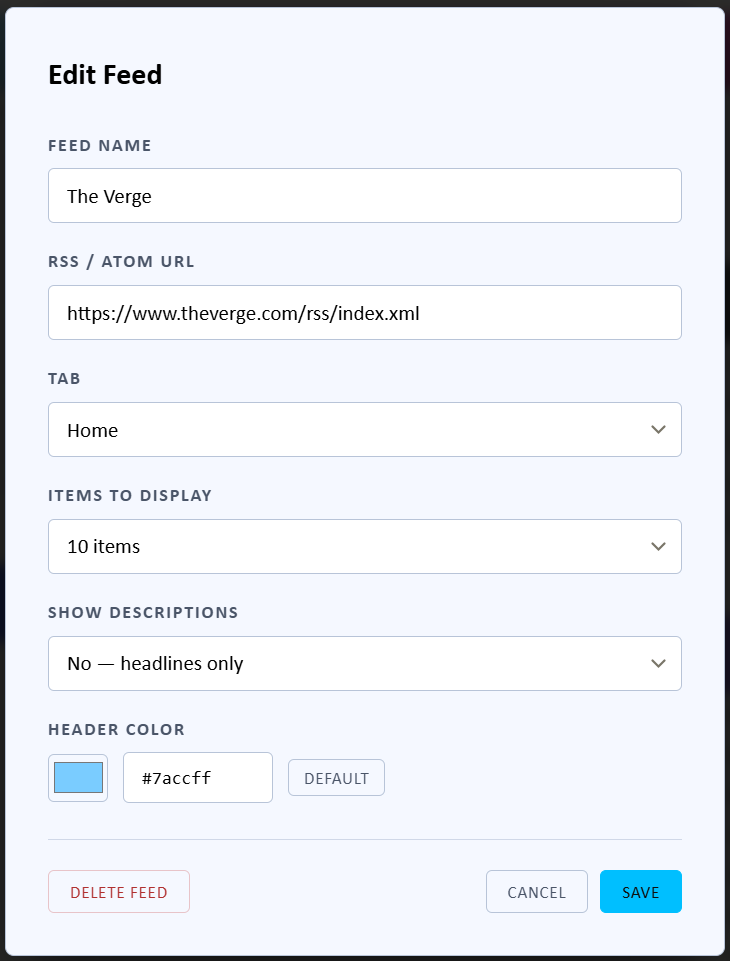
- Click the + Add Feed button in the top-right toolbar or located at the bottom of column.
- Enter the URL of the RSS or Atom feed in the dialog box.
- In the Edit Feed dialog, you can also configure: Header Color, Items to Display, Show Descriptions.
- Click Save to add it to your feed list.
3.2 Saving and Restoring Your Configuration
Saving a Configuration Backup

- Open Settings (gear icon).
- Under Configuration, click Download Config Backup.
- The configuration file is automatically saved to your Downloads folder.
Restoring or Importing a Configuration

- Open Settings (gear icon).
- Under Configuration, click Upload / Import Config.
- Select your previously saved configuration file.
3.3 Refreshing Feeds
WINStream automatically refreshes your feeds in the background. To manually trigger a refresh, click the Refresh button on the tool bar of a selected feed or "Refresh All" button in the top navigation bar.
3.4 Unsubscribing from a Feed
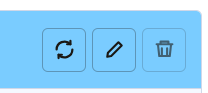
To remove a feed, click the trash can icon on the right side of the feed's header card. You will be prompted to confirm before the feed is permanently removed.
4. Stock Widget
WINStream includes a built-in stock widget that displays live market data alongside your news feeds. The widget is powered by the Finnhub financial data API and refreshes automatically.
4.1 Finnhub API Key (Required)
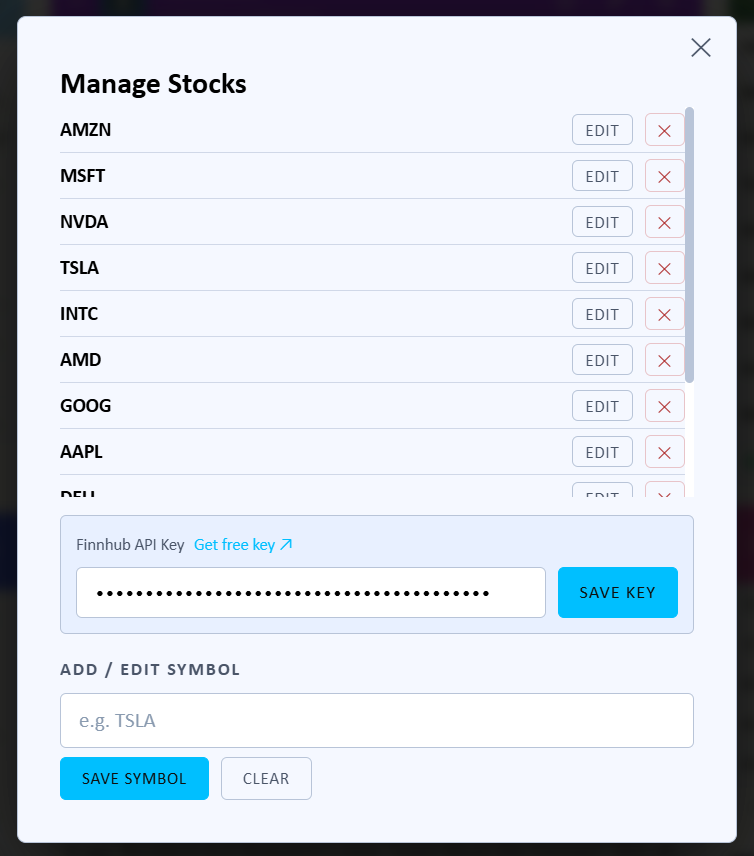
Setting Your Finnhub API Key
The stock widget requires a free Finnhub API key to fetch data.
- Visit finnhub.io and create a free account
- Copy your API key from the Finnhub dashboard
- Open Stock Widget Settings → scroll to the Finnhub API Key section
- Paste your key and click Save Key
Your key is stored locally on your machine in %AppData%\WINStream\apikeys.json and is never transmitted anywhere except directly to Finnhub.
Entering Your API Key in WINStream
- Open WINStream and click pencil icon located on the stock widget.
- Paste your Finnhub API key into the API Key field.
- Click Save Key. The widget will connect and begin displaying live data.
The WINStream Stock Widget displays live stock quotes with sparkline charts, price changes, and optional financial metrics. It refreshes automatically while the market is open and sits in the right-hand column of your feed grid.
Reading the Widget
Each stock shows two lines of information:
Line 1 — Price Summary
XXXX ▲▲▲ $293.34 ▲ 5.90 (2.05%) ✕
- Symbol — stock ticker
- Sparkline — 20-day price chart (green = up, red = down)
- Price — current price
- Change — dollar and percentage change from previous close
- ✕ — remove this stock from your list
Line 2 — Metrics (if enabled)
52W: $124.17–$260.10 P/E: 32.4 Earn: Jun 5
- 52W — 52-week price range (low–high)
- P/E — price-to-earnings ratio (trailing twelve months)
- Earn — next earnings report date
Status bar at the bottom shows:
- 🟢 Market Open / 🔴 Market Closed
- Last updated time and refresh interval
Configuring the Widget
Click the ✏️ pencil icon in the stock widget header to open Stock Widget Settings.
Managing Symbols
The top section lists all your tracked stocks. You can:
- Add a symbol — type a ticker in the Add / Edit Symbol field (e.g.
TSLA) and click Save Symbol - Edit a symbol — click Edit next to any symbol to load it into the input field, change it, then click Save Symbol
- Remove a symbol — click the red ✕ next to any symbol, or the ✕ button directly on the widget row
Choosing Which Columns to Display
The Visible Columns section lets you show or hide individual data columns. Check or uncheck any column — changes apply immediately.
Note: Columns marked metrics require an additional API call to Finnhub per symbol. Enabling several metrics columns will increase API usage. Finnhub's free tier allows 60 calls per minute — with 12 symbols and all metrics enabled, you should stay within this limit at the default 60-second refresh interval.
| Column | What it shows | Metrics |
|---|---|---|
| Sparkline | 20-day mini price chart | |
| Change / % | Dollar and percentage change from prior close | |
| 52-Week H/L | Highest and lowest price over the past 52 weeks | Yes |
| P/E Ratio | Price-to-earnings ratio (TTM) | Yes |
| Earnings Date | Next scheduled earnings report | Yes |
| Day High/Low | Today's intraday high and low | |
| Open Price | Today's opening price | |
| Prev Close | Previous session's closing price |
Hiding and Restoring the Widget
To hide the stock widget on the current tab, click the 🗑️ trash icon in the widget header. The widget will disappear from that tab only — it remains visible on other tabs.
To restore it, click the 📈 restore button that appears in the top-right header area of the app.
Refresh Rates
| Market State | Refresh Interval |
|---|---|
| Open (Mon–Fri, 9:30 AM – 4:00 PM ET) | Every 60 seconds |
| Closed (evenings, weekends, holidays) | Every 5 minutes |
The widget detects US Eastern time automatically. To force an immediate refresh, click the ↻ refresh icon in the widget header.
Troubleshooting
| Symptom | Likely Cause | Fix |
|---|---|---|
All prices show — |
No Finnhub API key set | Add your key in Stock Widget Settings |
52W / P/E show —— |
Backend not updated | Republish WINStreamBackend and restart |
| Widget shows 404 page | Backend not running | Restart WINStream (it will relaunch the backend) |
| Prices are stale | Market closed | Normal — widget refreshes every 5 min when closed |
| Widget missing after restart | Was hidden on this tab | Click the 📈 restore button in the header |
5. Customization & Settings
5.1 Opening Settings

5.2 Configuration Backup
Under the Configuration section you can save or restore all your WINStream customizations.
5.4 Appearance — Color Settings

Click Color Settings under the Appearance section to customize the app's visual theme. You can adjust the following colors: Page Background, Card Background, Feed Header, Accent / Buttons, Text.
5.6 Font Size Adjustment
WINStream lets you adjust the reading font size at any time without opening Settings. The control lives in the top-right toolbar and is designed to stay out of the way until you need it.
How it works
- In the toolbar you will see a single button labelled A. This is the font-size control in its resting state.
- Hover your mouse over the A button and it expands in place to reveal two buttons: A− to decrease the font size and A+ to increase it. Move the mouse away and the control quietly collapses back to A.
- Each click adjusts the font size by one point. The current size briefly appears in blue to the left of the buttons, then fades away.
- Font size ranges from 11 pt (compact) to 22 pt (large). The buttons dim automatically when either limit is reached.
- The font size setting is remembered between sessions — you only need to set it once.
- Font scaling applies to all feed content and article text. The toolbar and header area remain at a fixed size so the app chrome is unaffected.
5.7 Ultrawide Display — Four-Column Layout
On ultrawide monitors WINStream automatically expands from three feed columns to four, giving you more content on screen without any manual configuration. A toggle button in the toolbar lets you turn the extra column on or off at any time.
What triggers the four-column layout
Two conditions must both be true at the same time for the fourth column to appear automatically:
- Window width of at least 1,800 pixels. A standard 1080p (1920×1080) monitor at full screen does not qualify on its own because the next condition must also be met.
- Aspect ratio wider than 16:9. This targets genuine ultrawide screens (21:9, 32:9 super-ultrawide) and wide application windows without triggering on a typical full-screen 1080p display.
Benefits of the fourth column include more feeds visible at a glance and better use of screen real estate. Your preference is saved and remembered between sessions.